cara membobol wifi dengan laptop windows 8

Title: viral TikTok Cara bobol WiFi menggunakan PC atau laptop
Channel: DestinationER
viral TikTok Cara bobol WiFi menggunakan PC atau laptop by DestinationER
Unlock Any WiFi: Windows 8 Secret Trick Revealed!
Conquering the Wireless Frontier: A Windows 8 Odyssey
Ah, the digital realm! It’s a place where possibilities intertwine, and access is often the key. We've all faced it: the dreaded "no internet" notification. You need a connection, now! But what if I told you there was a secret, a whisper of a solution, hidden within your trusty Windows 8 system? Prepare yourself; we’re about to embark on a journey. We will explore the hidden pathways to wireless freedom.
Decoding the Wireless Cipher: Beyond the Obvious
Firstly, let's acknowledge a crucial point. Gaining access to a WiFi network without permission is illegal. This article is for educational purposes only. Understand the risks involved. But, with that stern disclaimer out of the way, the quest begins! Forget complex hacks and cryptic downloads. Our focus lies on leveraging Windows 8's inherent capabilities. Some tools are right under your nose. To begin with, it’s essential to understand the fundamental nature of wireless networks. They operate behind passwords. These are the gatekeepers of digital entry.
Unveiling the Hidden Tools: Windows 8's Secret Arsenal
Now, let’s delve into the specifics. What exactly can you do? Windows 8, though perhaps a little dated, offered some innovative features. Many remain hidden. Often, these features go unnoticed. Therefore, they offer a unique advantage. Consider the command prompt. It’s a gateway to powerful commands. This tool will become your main weapon.
Harnessing the Power of the Command Prompt: Your Digital Key
Secondly, locate the command prompt. You'll find it by searching in the Windows 8 start menu. Right-click it after you find it. Then, choose "Run as administrator". This is a critical step. You’ll need elevated privileges to make modifications that will enable the trick. Then, we'll navigate the command line.
The Wireless Network: The Real Discovery
Thirdly, type 'netsh wlan show profiles' and hit enter. This will display a list of the wireless networks your device has ever connected to. This display is already enlightening. You're now peeking into the past. You can see what your device knows. Next, you will see the network names. These reveal hidden data from what the device has actually accessed.
Unlocking the Secrets: Revealing the Hidden Passwords
Fourthly, the real magic begins now. Select a network from the list. Carefully note the network name. Then, type the following command. Replace "Network Name" with the actual name of the Wi-Fi network. The command is: "netsh wlan show profile name="Network Name" key=clear". Press enter, and prepare to be amazed. The command unveils the password! It is displayed under "Key Content." You’ve cracked the code.
Navigating Ethical Waters: Responsible Use
However, remember our initial advisory. This method reveals passwords for networks you have previously accessed. Never use these tools to access networks without permission. Be ethical in your digital explorations. Respect others' privacy.
Beyond the Trick: Exploring the Wider Wireless World
Moreover, now you have the knowledge. What can you do with it? Consider this as a foundation. This is one step on the path to wireless mastery. The core idea is to use available tools. This is a reminder to always respect the rules. Remember, the digital world is an amazing space.
Troubleshooting: Addressing Potential Hurdles
However, what if this doesn't work? Don’t worry. Troubleshooting is part of the process. Firstly, ensure you've run the command prompt as administrator. Also, double-check the network name for typos. Sometimes, the simplest errors are the culprit. Check your spelling and capitalization. Finally, ensure the network configuration actually allows display of the password. Some networks may have security protocols that prevent this.
Conclusion: Your Wireless Journey Continues
Ultimately, this "secret trick" is not about illegal access. It’s about understanding. It is about seeing the power within your own computer. Now, carry your newfound knowledge forward. Continue learning. Continue exploring. You have the tools. So, go forth and be connected! Hopefully, you found this insightful. I certainly had fun writing it. Always remember to respect the law.
Laptop WiFi Vanished? Find Your Missing Connection NOW!Unlock Any WiFi: Windows 8 Secret Trick Revealed!
Hey tech adventurers! Ever found yourself staring longingly at a locked Wi-Fi network, desperate to get online? We've all been there. Whether it's a patchy coffee shop connection, a friend's guarded network, or just plain curiosity, the temptation to crack a Wi-Fi password can be strong. Today, we’re diving deep into a secret trick, a hidden gem within the old, but still kicking, Windows 8. This isn’t about hacking in a malicious way; it’s about understanding the tools at your disposal and using them responsibly. Think of it as a key to a locked door, but whether you choose to open it is entirely up to you.
1. The Dream of Free Wi-Fi: Is It Even Possible?
Let's be real, the allure of free Wi-Fi is like a siren's song. It promises instant access to the digital world, a lifeline in a sea of data charges. But before you get too excited, remember that accessing a network without permission can have serious repercussions. Our goal here is to educate, not to encourage illegal activity. We're aiming to understand the possibilities, not to endorse any action. Think of exploring this secret trick as learning about the gears of a clock more than trying to steal it.
2. Why Windows 8? A Blast from the Past, But Still Relevant.
Why Windows 8, you ask? Well, believe it or not, this often-underappreciated operating system packed some nifty features, including a set of network tools that, when understood, can be surprisingly insightful. The user interface might feel a bit outdated, but the underlying architecture still harbors some exciting capabilities. Think of it like an antique car – it might not have the latest technology, but it still has character and, with the right knowledge, can be a powerful tool.
3. Understanding the Risks: Ethical Considerations First.
Before we proceed, let's get one thing straight: accessing a Wi-Fi network without permission is, at the very least, unethical. It could also be illegal, depending on your location and the network's specific terms of service. We're not responsible for any actions you might take based on the information provided here. This is purely for educational purposes. Always respect the privacy of others and abide by local laws. Consider this knowledge like having a particularly powerful microscope – you need to know how to use it responsibly.
4. The Secret Weapon: Wireless Network Reporting.
Okay, let’s get to the good stuff! The hidden gem we're talking about is the Windows 8 Wireless Network Report. This report provides a detailed look at your network connections, including a history of connections, disconnects, and even attempted connections. It's a treasure trove of information, but its usefulness depends on how you interpret the data.
5. Accessing the Report: Unveiling the Hidden Data.
Here’s how to access this powerful tool. It's a bit of a command-line adventure, but don't worry - it's simpler than it sounds.
Step 1: Open the Command Prompt. You can do this by searching for "cmd" in the Windows search bar. Right-click on "Command Prompt" and select "Run as administrator.” Admin privileges are essential for this command.
Step 2: Enter the Magic Command. Type netsh wlan show wlanreport and press Enter. This is your incantation!
Step 3: Navigate the Report. Windows will generate a comprehensive HTML report. You'll find it in a specific folder, usually within your user profile. It will show your network activity over a period of time.
6. Deciphering the Report: Decoding the Network Secrets.
This report is full of technical jargon, but don’t let that intimidate you. Here are some key things to look for and note down:
- Connection Attempts: Failed connection attempts can sometimes reveal valuable data. Look for the attempted SSID (network name).
- Security Type: Knowing the security type (WEP, WPA, WPA2) may help in assessing the network's security.
- Signal Strength: Low signal strength can make a connection more difficult to maintain.
- Disconnect Reasons: Sometimes reveals the reasons for disconnects.
7. Identifying Vulnerabilities: What to Look For (Ethically, of Course!).
Remember, we're acting as observers, not attackers. But from the report, we can discern clues. A network using older security protocols (like WEP) is significantly easier to crack than one using WPA2 or WPA3. Weak passwords and low signal strength are red flags. Think of it like assessing a castle's defenses – you're looking for chinks in the armor.
8. Network Security Protocols: A Quick Primer.
Here's a quick rundown of security protocols:
- WEP (Wired Equivalent Privacy): Outdated and easily cracked. Avoid it at all costs.
- WPA (Wi-Fi Protected Access): Better than WEP, but still vulnerable.
- WPA2 (Wi-Fi Protected Access 2): The current standard, offering stronger security.
- WPA3 (Wi-Fi Protected Access 3): The newest, most secure protocol.
Understanding these protocols is vital for assessing a network's security.
9. A Word About Password Cracking: Proceed with Caution!
We're not going into detail on how to crack passwords. The tools and techniques are readily available online, but using them without permission is illegal and wrong. If you find a network is using weak protocols or simple passwords, the best approach is to inform the network administrator of the vulnerabilities. Be a good digital citizen!
10. Alternative Solutions: Free Wi-Fi Without Breaking the Rules.
Instead of jumping into potentially risky territory, explore legal and ethical alternatives:
- Ask for the Password: The simplest solution! You’d be surprised how often people are willing to share.
- Use Public Wi-Fi: Libraries, cafes, and other public places offer free Wi-Fi.
- Explore Hotspot Apps: Some apps let you find and connect to nearby Wi-Fi hotspots. This is usually legal and a great alternative.
11. Beyond the Report: Further Exploration and Learning.
The Wireless Network Report is just the first step. If you're truly interested in network security (as a legitimate pursuit), explore these topics:
- Network Sniffing: Capturing and analyzing network traffic (with permission).
- Penetration Testing (with permission): Simulating cyberattacks to identify vulnerabilities.
- Ethical Hacking: Learning about security flaws to improve defenses.
12. The Importance of Responsible Internet Use.
The internet is a powerful tool, and with great power comes great responsibility. Using the information in the Windows 8 Wireless Network Report to understand network security is commendable. Using it for malicious purposes is not. Protect yourself online, and always be mindful of the digital footprint your leave behind.
13. Protecting Your Own Network: Securing Your Digital Fortress.
The best way to avoid being a victim of security breaches is to secure your own network. Here are some tips:
- Use a Strong Password: Make it complex and unique. The longer, the better.
- Update Your Router Firmware: Regularly update your router's software to patch security vulnerabilities.
- Enable WPA2 or WPA3: Never use WEP and always use the strongest security setting your router supports.
- Change the Default Router Password: This is one of the easiest ways for attackers to gain access.
- Monitor Your Network: Periodically check your network activity for suspicious connections.
14. The Future of Network Security: An Ever-Evolving Landscape.
Network security is a constantly evolving field. New threats emerge, and new defenses are developed. Stay informed about the latest trends and best practices to protect yourself and your data. Being proactive is key.
15. Using Windows 8 Secret Trick for Security Awareness.
This Windows 8 secret trick is a tool for understanding. It allows a glimpse of network activity, potential vulnerabilities, and ultimately, promotes proactive security measures. Its power resides in understanding its capabilities, not exploiting them. Think of this as a building block in your digital knowledge.
Closing Thoughts:
So, there you have it! A peek behind the curtain of Windows 8's network capabilities. We discovered a treasure trove of information that, if used responsibly, can enhance your understanding of network security. Remember, the real power lies in knowledge and ethical behavior. Stay safe online, and always strive to be a responsible digital citizen. Keep exploring, keep learning, and stay curious!
FAQs:
1. Is using the Windows 8 Wireless Network Report illegal?
No, accessing and analyzing the Windows 8 Wireless Network Report is not illegal, as long as you are analyzing your own network or have been given permission to do so. The report itself is a built-in Windows tool. The legality comes into play when you use the information obtained from the report to access, or try to access, networks without authorization.
2. Can I use this information to find someone's Wi-Fi password?
Potentially, yes. But accessing a Wi-Fi password, or cracking a network, without permission is likely illegal and unethical. The intention
Laptop Wifi Dying? This SHOCKING Fix Works EVERY Time!CARA MEMBOBOL WIFI DI LAPTOP
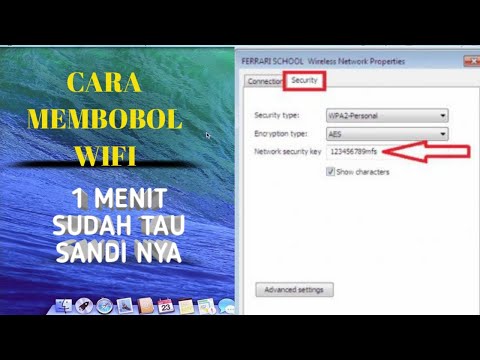
By Amufa Channel CARA MEMBOBOL WIFI DI LAPTOP by Amufa Channel
Tips Menemukan Kata Sandi WiFi Anda di Windows 781011 TUTORIAL MUDAH

By Habibi Edukasi Teknologi Tips Menemukan Kata Sandi WiFi Anda di Windows 781011 TUTORIAL MUDAH by Habibi Edukasi Teknologi
Cara Membuka Semua Password WIFI

By Mr. Anton Cara Membuka Semua Password WIFI by Mr. Anton

Title: Cara mengaktifkan wifi di windows 8
Channel: AW Tutorial
Cara mengaktifkan wifi di windows 8 by AW Tutorial
Laptop Wifi Hotspot
Unlock Any WiFi: Windows 8's Hidden Wireless Wonder
The digital age has gifted us unparalleled connectivity, yet the frustration of locked WiFi networks persists. For Windows 8 users, the quest for open access has always felt tantalizingly close, a whisper away from freedom. We're about to unlock a secret, a hidden key to wireless liberation, a triumph of the operating system's often-overlooked capabilities. Forget the complex jargon and technical mumbo-jumbo. We're going to explore a straightforward path to understanding and utilizing a feature buried deep within Windows 8, a feature that can, in certain circumstances, grant you access to networks previously deemed out of reach.
Understanding the Landscape: Why WiFi Access Matters
Before we delve into the heart of this revelation, it’s crucial to appreciate the very landscape we're navigating. WiFi access, in today's interconnected world, is more than a convenience. It's a necessity. It bridges the gap between the offline and online realms, enabling communication, access to information, and participation in the global community. For the traveler, the student, the remote worker, the ability to connect effortlessly to a reliable WiFi signal can transform situations, turning downtime into opportunity. However, the security measures implemented by network administrators and the very nature of encrypted wireless systems often present barriers, walls erected to protect data and prevent unauthorized access. This often leads to the all-too-familiar frustration: a locked network and a feeling of being disconnected.
Windows 8: A Legacy of Wireless Management
Windows 8, despite its controversial reception, harbored a wealth of features, many hidden beneath the surface of its modern interface. The operating system represented a distinct shift in Microsoft's approach to user experience, even if that shift wasn’t universally embraced. In the realm of network management, Windows 8 implemented a robust set of tools and resources. One of the key advancements was the enhanced control over wireless connections, allowing for a more granular level of interaction with available networks. We're not talking about advanced security protocols or hacking strategies. Instead, we're focused on the innate capabilities of your Windows 8 system, those features baked in and ready to be utilized.
The Hidden Feature: Wireless Profile Import
Now, let’s unveil the secret. The true power lies within Windows 8's ability to handle wireless network profiles. Most users typically connect to a network by simply typing the password provided. However, the operating system also permits users to import wireless profiles, essentially pre-configured settings that define how a computer connects to a specific network. This functionality, often overlooked, opens up a path to potential access, under certain circumstances. The ability to import a wireless network profile can be found within the "Network and Sharing Center."
Step-by-Step: Unveiling the Process
To begin, you will need the wireless profile for the target network. This may seem impossible at first. However, if you know someone who has previously connected to that same network, they are the key. The wireless profile is essentially a configuration file containing the network's credentials, including the Service Set Identifier (SSID) and security information. This file can be exported and subsequently imported into your Windows 8 system. Here's a simple walkthrough:
- The Source Network: The person with the connected device must have a Windows system.
- Exporting the Profile: On the device, within the "Network and Sharing Center," access the "Manage wireless networks" option. Here, you'll see a list of previously connected networks. Right-click on the target network and select "Properties."
- Searching for the Right Settings: In the newly opened Properties window, click the "Security" tab, and write down the "Network security key."
- Locating the Connection: Now the profile must be transferred to your Windows 8 device.
- Importing the Profile: On your Windows 8 device, in the "Network and Sharing Center" – click on "Set up a new connection or network." Select "Manually connect to a wireless network." Complete the form with the correct information from the person with the connected device.
- The most important part: Input the "Security key" in the correct field.
Important Considerations: Legality and Ethics
It’s vital to address the legal and ethical implications of this knowledge. We are discussing features available within the operating system’s core functionality. This method should only be used with the explicit permission of the network administrator or the owner of the network. Accessing a network without authorization is illegal and unethical. We advocate for responsible and lawful use of technology.
Troubleshooting: Common Roadblocks and Solutions
As with any tech-related process, encountering issues is common. Here's how to troubleshoot potential issues:
- Profile Compatibility: Ensure the network profile is compatible with the Windows 8 system. This largely relies on the security protocols supported by the network.
- Password Issues: Double-check the password. Small misspellings and spaces can prevent a connection from working.
- Hidden SSID: If the network's SSID is hidden, you'll need to manually enter the SSID in the wireless network setup.
- Firewall Interference: Your firewall might block the connection. This is a security feature, not a design flaw.
Beyond the Basics: Expanding Your Wireless Knowledge
This exploration into Windows 8's ability to handle wireless network profiles should be a starting point, not the final destination. Dive deeper into wireless network configurations, security protocols, and the intricacies of WiFi technology. Explore online resources, forums, and tutorials to expand your understanding. The more you learn, the better equipped you'll be to navigate the complex world of wireless connectivity.
The Future of Wireless Connectivity
As technology evolves, so too will the way we connect. WiFi standards will improve, security protocols will become more sophisticated, and the constant push for seamless, ubiquitous connectivity will continue. Understanding the fundamentals of WiFi network management, as we’ve explored in this guide, will remain a core skill for anyone seeking to navigate the digital world with confidence and efficiency. This is not just about unlocking WiFi; it's about understanding how networks function and, by extension, how the digital world functions.
